php-ksip-telnet
A PHP library for managing FreePBX/Asterisk PJSIP extensions remotely via SSH.
Requirements
- PHP >= 7.4
- Composer
- FreePBX / Asterisk server with SSH access
Installation
composer require codego/php-ksip-telnetUsage
1. Connect to SSH
<?php

require 'vendor/autoload.php';

use KsipTelnet\SSHClient;

$client = new SSHClient();

// Default port 22
$client->connect('your-server-ip', 'root', 'your-password');

// Custom port
$client->connect('your-server-ip', 'root', 'your-password', 2222);
2. Create a PJSIP Extension
$result = $client->createExtensionKsip(
    '1001',          // extension number
    'secret123',     // extension password
    'freepbxuser',   // MySQL username
    'dbpassword'     // MySQL password
);

echo $result['sql_output'];
echo $result['reload_output'];
3. Get All Extensions
$extensions = $client->getExtKsipList('freepbxuser', 'dbpassword');
// returns: ['1001', '1002', '1003', ...]
4. Generate Extension if Not Exists
$result = $client->genExtKsip(
    [
        'extName'  => '1005',
        'password' => 'secret123'  // optional, defaults to extName
    ],
    'freepbxuser',
    'dbpassword'
);

// If extension already exists:
// ['status' => 'exists', 'extension' => '1005', 'message' => 'Extension 1005 already exists']

// If extension was created:
// ['status' => 'created', 'extension' => '1005', 'result' => [...]]
5. Run a Custom SSH Command
$output = $client->exec('asterisk -rx "pjsip show endpoints"');
echo $output;
Environment Variables (Recommended)
Instead of hardcoding credentials, use environment variables:
export SSH_HOST=your-server-ip
export SSH_USER=root
export SSH_PASS=your-password
export SSH_PORT=22
$client->connect(
getenv('SSH_HOST'),
getenv('SSH_USER'),
getenv('SSH_PASS'),
getenv('SSH_PORT') ?: 22
);Laravel Integration
Install the package
composer require codego/php-ksip-telnetAdd credentials to .env
SSH_HOST=your-server-ip
SSH_USER=root
SSH_PASS=your-password
SSH_PORT=22
SSH_DB_USER=freepbxuser
SSH_DB_PASS=dbpasswordCreate a Service class
php artisan make:service FreePBXService<?php
namespace App\Services;
use KsipTelnet\SSHClient;
class FreePBXService
{
protected SSHClient $client;
public function __construct()
{
$this->client = new SSHClient();
$this->client->connect(
config('services.freepbx.host'),
config('services.freepbx.user'),
config('services.freepbx.pass'),
config('services.freepbx.port', 22)
);
}
public function createExtensionKsip(string $ext, string $password): array
{
return $this->client->createExtensionKsip(
$ext, $password,
config('services.freepbx.db_user'),
config('services.freepbx.db_pass')
);
}
public function getExtKsipList(): array
{
return $this->client->getExtKsipList(
config('services.freepbx.db_user'),
config('services.freepbx.db_pass')
);
}
public function genExtKsip(array $data): array
{
return $this->client->genExtKsip(
$data,
config('services.freepbx.db_user'),
config('services.freepbx.db_pass')
);
}
public function exec(string $command): string
{
return $this->client->exec($command);
}
}Register in config/services.php
'freepbx' => [
    'host'    => env('SSH_HOST'),
    'user'    => env('SSH_USER'),
    'pass'    => env('SSH_PASS'),
    'port'    => env('SSH_PORT', 22),
    'db_user' => env('SSH_DB_USER'),
    'db_pass' => env('SSH_DB_PASS'),
],Bind in AppServiceProvider
use App\Services\FreePBXService;

public function register(): void
{
    $this->app->singleton(FreePBXService::class);
}Use in a Controller
php artisan make:controller ExtensionController<?php
namespace App\Http\Controllers;
use App\Services\FreePBXService;
use Illuminate\Http\Request;
class ExtensionController extends Controller
{
public function __construct(protected FreePBXService $freepbx) {}
public function store(Request $request)
{
$request->validate([
'extension' => 'required|numeric',
'password' => 'required|string',
]);
return response()->json(
$this->freepbx->createExtensionKsip($request->extension, $request->password)
);
}
public function index()
{
return response()->json($this->freepbx->getExtKsipList());
}
public function generate(Request $request)
{
$request->validate([
'extName' => 'required|numeric',
'password' => 'nullable|string',
]);
return response()->json(
$this->freepbx->genExtKsip($request->only('extName', 'password'))
);
}
}Add routes in routes/api.php
use App\Http\Controllers\ExtensionController;

Route::get('/extensions', [ExtensionController::class, 'index']);
Route::post('/extensions', [ExtensionController::class, 'store']);
Route::post('/extensions/generate', [ExtensionController::class, 'generate']);Test via API
curl -X POST http://your-app.com/api/extensions \
  -H "Content-Type: application/json" \
  -d '{"extension": "1001", "password": "secret123"}'
make:ksip-config — Per-User Softphone Settings
Generates a migration, model, controller, and API routes so each authenticated user can save and retrieve their own softphone configuration from the database.
php artisan make:ksip-config
php artisan migrate
What it generates
database/migrations/{timestamp}_create_softphone_configs_table.phpapp/Models/SoftphoneConfig.phpapp/Http/Controllers/Api/SoftphoneConfigController.php- Appends routes to
routes/api.php
Migration Schema
Schema::create('softphone_configs', function (Blueprint $table) {
    $table->id();
    $table->foreignId('user_id')->constrained()->onDelete('cascade');

    // SIP Connection
    $table->string('server')->nullable();
    $table->enum('ws_protocol', ['ws', 'wss'])->default('ws');
    $table->string('ws_port')->default('8088');
    $table->string('extension')->nullable();
    $table->string('password')->nullable();
    $table->string('display_name')->nullable();

    // Codecs
    $table->json('audio_codecs')->nullable();
    $table->json('video_codecs')->nullable();

    // UI Toggles
    $table->boolean('enabled_bubble')->default(true);
    $table->boolean('show_dialer')->default(true);
    $table->boolean('show_setting')->default(true);
    $table->boolean('show_opacity')->default(true);
    $table->boolean('answer_with_video_call')->default(false);
    $table->boolean('show_incoming_call_video_btn')->default(true);
    $table->boolean('show_incoming_call_audio')->default(true);
    $table->boolean('fullscreen')->default(false);

    // Recording
    $table->boolean('auto_record')->default(false);
    $table->string('recording_dir')->default('video/recordings/Ksip');
    $table->string('upload_api_url')->nullable();

    // Position
    $table->integer('position_top')->nullable();
    $table->integer('position_bottom')->nullable();
    $table->integer('position_left')->nullable();
    $table->integer('position_right')->nullable();

    $table->unique('user_id'); // one config per user
    $table->timestamps();
});
Generated API Routes
Route::middleware(['auth:sanctum,web'])->group(function () {
    Route::get('/softphone-config',  [SoftphoneConfigController::class, 'show']);
    Route::post('/softphone-config', [SoftphoneConfigController::class, 'save']);
});| Method | Endpoint | Description |
|---|---|---|
| GET | /api/softphone-config |
Get the authenticated user's config |
| POST | /api/softphone-config |
Save / update the authenticated user's config |
Save Config Example
curl -X POST http://your-app.com/api/softphone-config \
  -H "Authorization: Bearer {token}" \
  -H "Content-Type: application/json" \
  -d '{
    "server": "192.168.1.100",
    "ws_protocol": "ws",
    "ws_port": "8088",
    "extension": "1001",
    "password": "mypassword",
    "display_name": "Juan Luna",
    "audio_codecs": ["PCMU", "PCMA"],
    "video_codecs": ["VP8", "H264"],
    "auto_record": true
  }'
React Integration — configApiUrl prop
Pass the API endpoint and Bearer token to the Softphone component. It fetches the user's saved config on mount and falls back to built-in defaults if the API returns null.
<Softphone
  configApiUrl="/api/softphone-config"
  configApiToken={userToken}
/>{ "data": null } (no saved config yet), the component automatically uses its built-in default values — no extra setup needed.API Response Format
{
  "data": {
    "id": 1,
    "user_id": 42,
    "server": "192.168.1.100",
    "ws_protocol": "ws",
    "ws_port": "8088",
    "extension": "1001",
    "password": "mypassword",
    "display_name": "Juan Luna",
    "audio_codecs": ["PCMU", "PCMA"],
    "video_codecs": ["VP8", "H264"],
    "enabled_bubble": true,
    "show_dialer": true,
    "show_setting": true,
    "show_opacity": true,
    "answer_with_video_call": false,
    "show_incoming_call_video_btn": true,
    "show_incoming_call_audio": true,
    "fullscreen": false,
    "auto_record": true,
    "recording_dir": "video/recordings/Ksip",
    "upload_api_url": null,
    "position_top": null,
    "position_bottom": 20,
    "position_left": null,
    "position_right": 20
  }
}
make:ksip — Create Extension via CLI
Create a FreePBX PJSIP extension directly from the terminal without writing any PHP code.
php artisan make:ksip --extension="1001" --name="Juan Luna" --secret="mypassword"--secret is optional. If omitted, the extension number is used as the password automatically.
php artisan make:ksip --extension="1001" --name="Juan Luna"
# Password defaults to: 1001
Options
| Option | Required | Description |
|---|---|---|
--extension | ✓ Yes | The PJSIP extension number |
--name | ✓ Yes | Display name / Caller ID |
--secret | ✗ No | SIP password (defaults to extension number) |
Prerequisites
Make sure config/services.php has the freepbx block and your .env is set:
SSH_HOST=your-server-ip
SSH_USER=root
SSH_PASS=your-password
SSH_PORT=22
SSH_DB_USER=freepbxuser
SSH_DB_PASS=dbpassword
'freepbx' => [
'host' => env('SSH_HOST'),
'user' => env('SSH_USER'),
'pass' => env('SSH_PASS'),
'port' => env('SSH_PORT', 22),
'db_user' => env('SSH_DB_USER'),
'db_pass' => env('SSH_DB_PASS'),
],FreePBX 17 Deployment Guide
For FreePBX version 17.0.28 and newer, the extension creation script needs to be manually deployed to your FreePBX server for optimal compatibility.
Download the FreePBX 17 Script
The script is automatically included in your project at:
stubs/create_freepbx_extension_v17.phpUpload to FreePBX Server
scp stubs/create_freepbx_extension_v17.php root@your-pbx-server:/var/lib/asterisk/bin/create_freepbx_extension.phpSet Executable Permissions
ssh root@your-pbx-server "chmod 755 /var/lib/asterisk/bin/create_freepbx_extension.php"Test the Installation
php artisan make:ksip --extension="test123" --name="Test User" --secret="test123"Check the output for FreePBX reload and endpoint verification messages.
What the v17 Script Does
- ✅ Creates FreePBX device and user records via Core API
- ✅ Applies WebRTC-specific PJSIP settings (DTLS, ICE, Bundle)
- ✅ Creates proper AOR (Address of Record) configuration
- ✅ Triggers FreePBX reload and PJSIP module reload
- ✅ Verifies endpoint creation with
pjsip show endpoint - ✅ Returns detailed output for troubleshooting
Troubleshooting
If you see "Unable to find object" after creation:
- Check if the script exists:
ls -la /var/lib/asterisk/bin/create_freepbx_extension.php - Verify permissions:
ls -la /var/lib/asterisk/bin/ - Test manually:
php /var/lib/asterisk/bin/create_freepbx_extension.php [base64-payload] - Check FreePBX logs:
tail -f /var/log/asterisk/full
Auto Extension Registration
Automatically generates a unique 12-digit extension number from a user's name acronym + birthdate, then registers it in FreePBX. Can run as a cron job or be called directly from a controller.
Extension Number Formula
Each initial letter is converted to its alphabet position (A=01 … Z=26, zero-padded to 2 digits), then the birthdate is appended as mmddyy. If the total is less than 12 digits, random digits fill the remainder.
| Part | Example | Result |
|---|---|---|
| Last name initial — L (12th letter) | Luna | 12 |
| First name initial — J (10th letter) | Juan | 10 |
| Middle name initial — M (13th letter) | Mercado | 13 |
| Birthdate (mmddyy) | 12/16/1996 | 121696 |
| Final Extension | 121013121696 |
Scaffold the cron job
php artisan make:ksip-register-userGenerates app/Console/Commands/AssignExtensionToUsers.php and appends the schedule entry to routes/console.php.
Add to .env
SSH_HOST=your-server-ip
SSH_USER=root
SSH_PASS=your-password
SSH_PORT=22
SSH_DB_USER=freepbxuser
SSH_DB_PASS=dbpasswordRun the scheduler
# Run once manually
php artisan ksip:assign-extensions

# Or let the scheduler handle it every minute
php artisan schedule:runProduction: Auto-run via Supervisor
In production, use Supervisor to keep the scheduler running automatically — no need to manually trigger it every minute.
1. Install Supervisor
sudo apt install supervisor2. Create config file
sudo nano /etc/supervisor/conf.d/laravel-scheduler.conf[program:laravel-scheduler]
process_name=%(program_name)s
command=bash -c "while true; do php /var/www/your-project/artisan schedule:run; sleep 60; done"
autostart=true
autorestart=true
user=www-data
redirect_stderr=true
stdout_logfile=/var/www/your-project/storage/logs/scheduler.log/var/www/your-project with your actual project path and www-data with your server user (e.g. ubuntu, forge, deployer).3. Start Supervisor
sudo supervisorctl reread
sudo supervisorctl update
sudo supervisorctl start laravel-scheduler
4. Check status
sudo supervisorctl status laravel-schedulerSupervisor will automatically restart the scheduler if the server reboots or the process crashes. Logs are written to storage/logs/scheduler.log.
Call directly from a Registration Controller
Use SSHClient::ksipRegisterUser() to assign an extension immediately on user registration — no need to wait for the cron job.
<?php

namespace App\Http\Controllers\Auth;

use App\Models\User;
use Illuminate\Http\Request;
use KsipTelnet\SSHClient;

class RegisterController extends Controller
{
    public function register(Request $request)
    {
        $request->validate([
            'first_name'  => 'required|string',
            'last_name'   => 'required|string',
            'middle_name' => 'nullable|string',
            'birth_date'  => 'required|date',
            'email'       => 'required|email|unique:users',
            'password'    => 'required|min:8|confirmed',
        ]);

        $user = User::create([
            'first_name'  => $request->first_name,
            'last_name'   => $request->last_name,
            'middle_name' => $request->middle_name,
            'birth_date'  => $request->birth_date,
            'email'       => $request->email,
            'password'    => bcrypt($request->password),
        ]);

        $ssh = new SSHClient();
        $ssh->connect(
            config('services.freepbx.host'),
            config('services.freepbx.user'),
            config('services.freepbx.pass'),
            config('services.freepbx.port', 22)
        );

        $result = SSHClient::ksipRegisterUser(
            $user,
            $ssh,
            config('services.freepbx.db_user'),
            config('services.freepbx.db_pass')
        );

        return response()->json([
            'user'      => $user,
            'extension' => $result['extension'],
            'status'    => $result['status'],
        ], 201);
    }
}
Generate Extension Number Only (no SSH)
use KsipTelnet\SSHClient;

$ext = SSHClient::generateExtensionFromUser(
    'Luna',      // last_name
    'Juan',      // first_name
    'Mercado',   // middle_name
    '12/16/1996' // birth_date
);

// $ext → '121013121696'
Return Values of ksipRegisterUser
| status | Meaning |
|---|---|
assigned | Extension generated and registered in FreePBX |
skipped | User already has an extensionName |
error | Missing name or birthdate fields |
Artisan Scaffold Generator
The package includes a make:ksipgen command that auto-generates call recording scaffold files in your Laravel project connects to KSIP (juv-ksip-softphone) just install reacr ksip juv-ksip-softphone.
Install React KSIP
npm i juv-ksip-softphone@latestWhat it generates
app/Http/Controllers/Api/CallRecordingController.phpdatabase/migrations/{timestamp}_create_call_recordings_table.php- Appends routes to
routes/api.php
Usage
php artisan make:ksipgen
php artisan migrate
Generated Routes
Route::prefix('recordings')->group(function () {
    Route::post('/upload', [CallRecordingController::class, 'upload']);
    Route::get('/', [CallRecordingController::class, 'index']);
    Route::get('/{id}', [CallRecordingController::class, 'show']);
    Route::get('/{id}/download', [CallRecordingController::class, 'download']);
    Route::delete('/{id}', [CallRecordingController::class, 'delete']);
});
Upload Example
curl -X POST http://your-app.com/api/recordings/upload \
  -F "file=@/path/to/recording.wav" \
  -F "caller=1001" \
  -F "callee=1002" \
  -F "duration=60"
Migration Schema
Schema::create('call_recordings', function (Blueprint $table) {
    $table->id();
    $table->string('filename');
    $table->string('path');
    $table->string('caller')->nullable();
    $table->string('callee')->nullable();
    $table->integer('duration')->nullable();
    $table->timestamps();
});
Available API Endpoints
| Method | Endpoint | Description |
|---|---|---|
| GET | /api/recordings |
List all recordings |
| POST | /api/recordings/upload |
Upload a recording (mp3/wav/ogg) |
| GET | /api/recordings/{id} |
Get a single recording |
| GET | /api/recordings/{id}/download |
Download a recording |
| DELETE | /api/recordings/{id} |
Delete a recording |
SipController — Artisan Command Integration
Create extensions via HTTP API by calling the make:ksip Artisan command from a controller.
Controller Implementation
<?php

namespace App\Http\Controllers;

use Illuminate\Http\Request;
use Illuminate\Support\Facades\Artisan;

class SipController extends Controller
{
    public function createExtension(Request $request)
    {
        $request->validate([
            'extension' => 'required|string',
            'name'      => 'required|string',
            'secret'    => 'required|string',
        ]);

        // Call the Artisan command
        $exitCode = Artisan::call('make:ksip', [
            '--extension' => $request->extension,
            '--name'      => $request->name,
            '--secret'    => $request->secret,
        ]);

        // Get the output of the command
        $output = Artisan::output();

        if ($exitCode === 0) {
            return response()->json([
                'success' => true,
                'message' => "Extension {$request->extension} created successfully!",
                'output'  => $output,
            ], 201);
        }

        return response()->json([
            'success' => false,
            'message' => 'Failed to create extension',
            'output'  => $output,
        ], 500);
    }
}
Route Registration
// routes/api.php
Route::post('/sip/create-extension', [SipController::class, 'createExtension']);
API Usage
curl -X POST http://your-app.com/api/sip/create-extension \
  -H "Content-Type: application/json" \
  -d '{
    "extension": "1001",
    "name": "Juan Luna",
    "secret": "mypassword"
  }'
License
This package is open-sourced software licensed under the MIT license.
juv-ksip-softphone
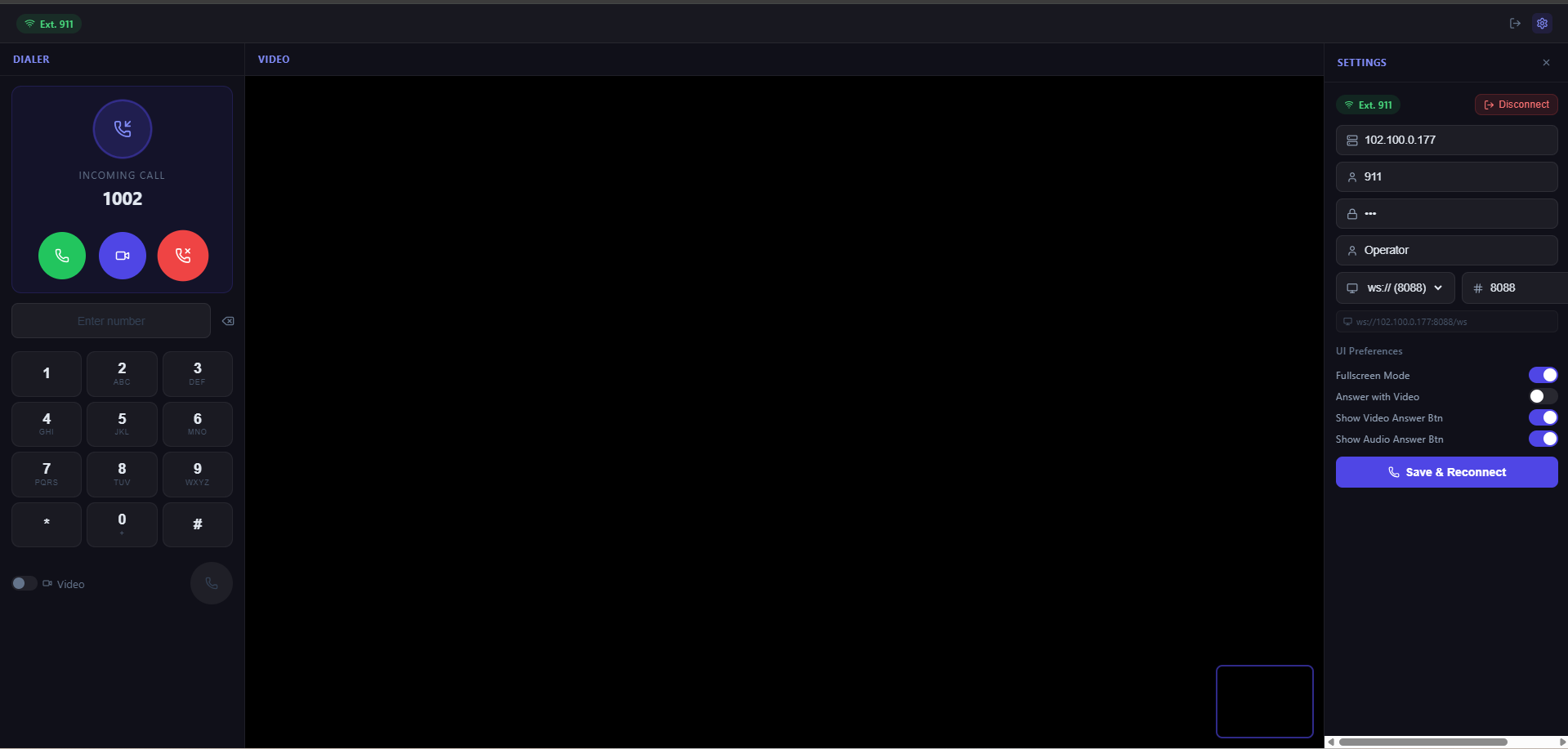
A professional, draggable, resizable, transparent React WebRTC SIP softphone component for FreePBX / Asterisk. Supports audio and video calls, incoming call handling, codec selection, and a global ksipcall API for triggering calls from anywhere in your app.
How does it work?
The component connects to your FreePBX/Asterisk server via WebSocket SIP (ws:// port 8088 or wss:// port 8089). Once registered, WebRTC handles audio/video streams natively in the browser — no plugins needed.
Browser  ──WebSocket──▶  FreePBX/Asterisk  ──SIP──▶  Other Phone
           (SIP/WS)           (PBX)
Browser  ◀──WebRTC──▶   FreePBX/Asterisk  ◀──RTP──▶  Other Phone
           (Audio/Video)      (Media)
Screenshots
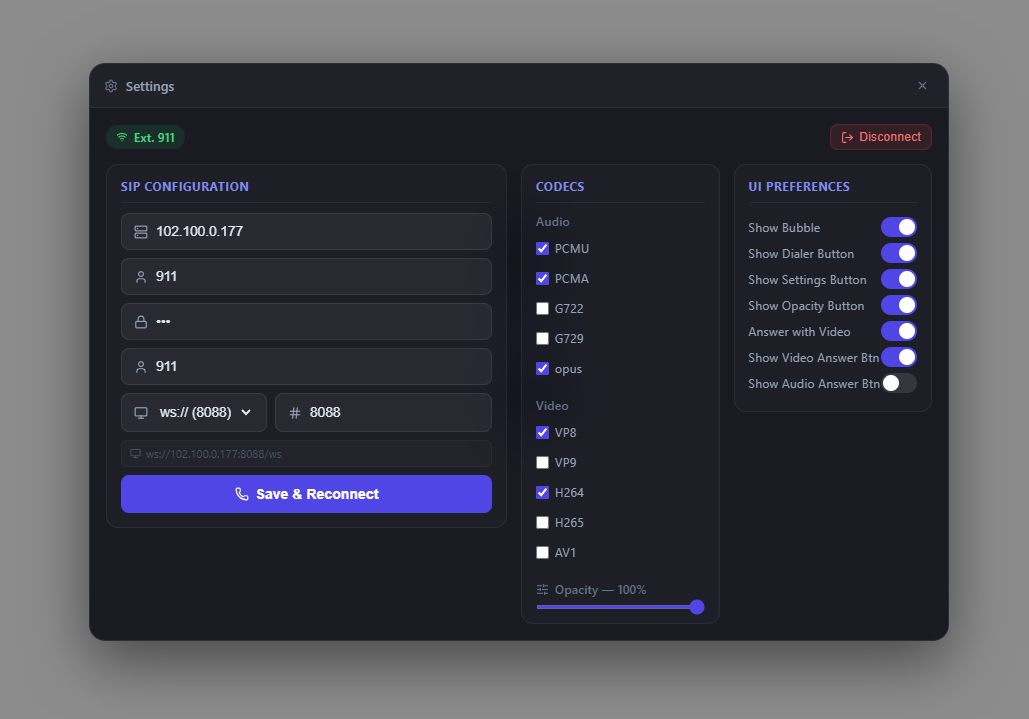
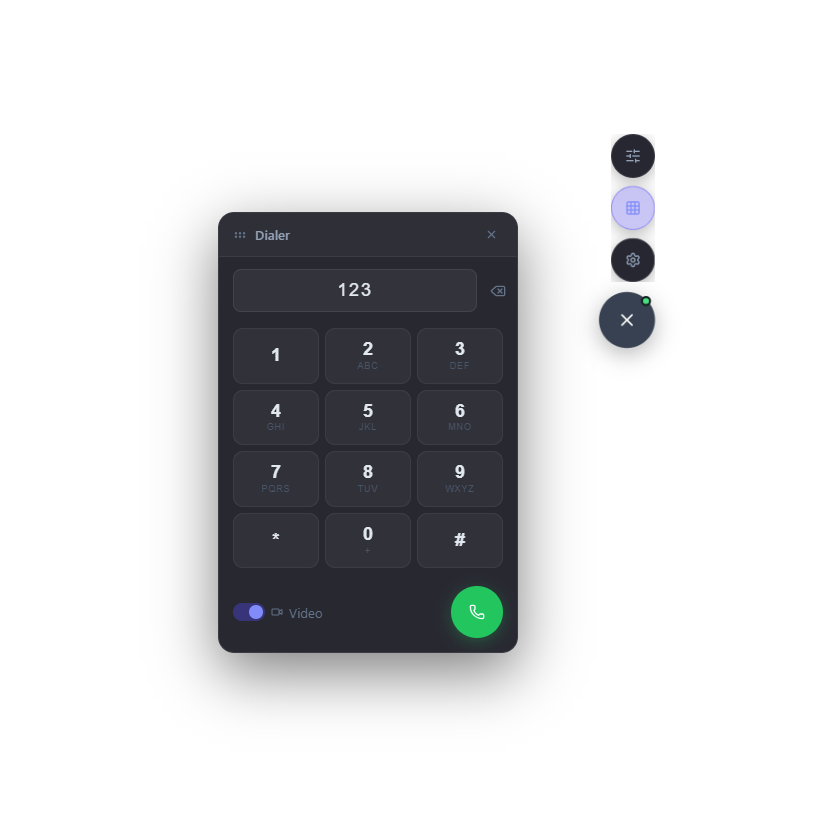
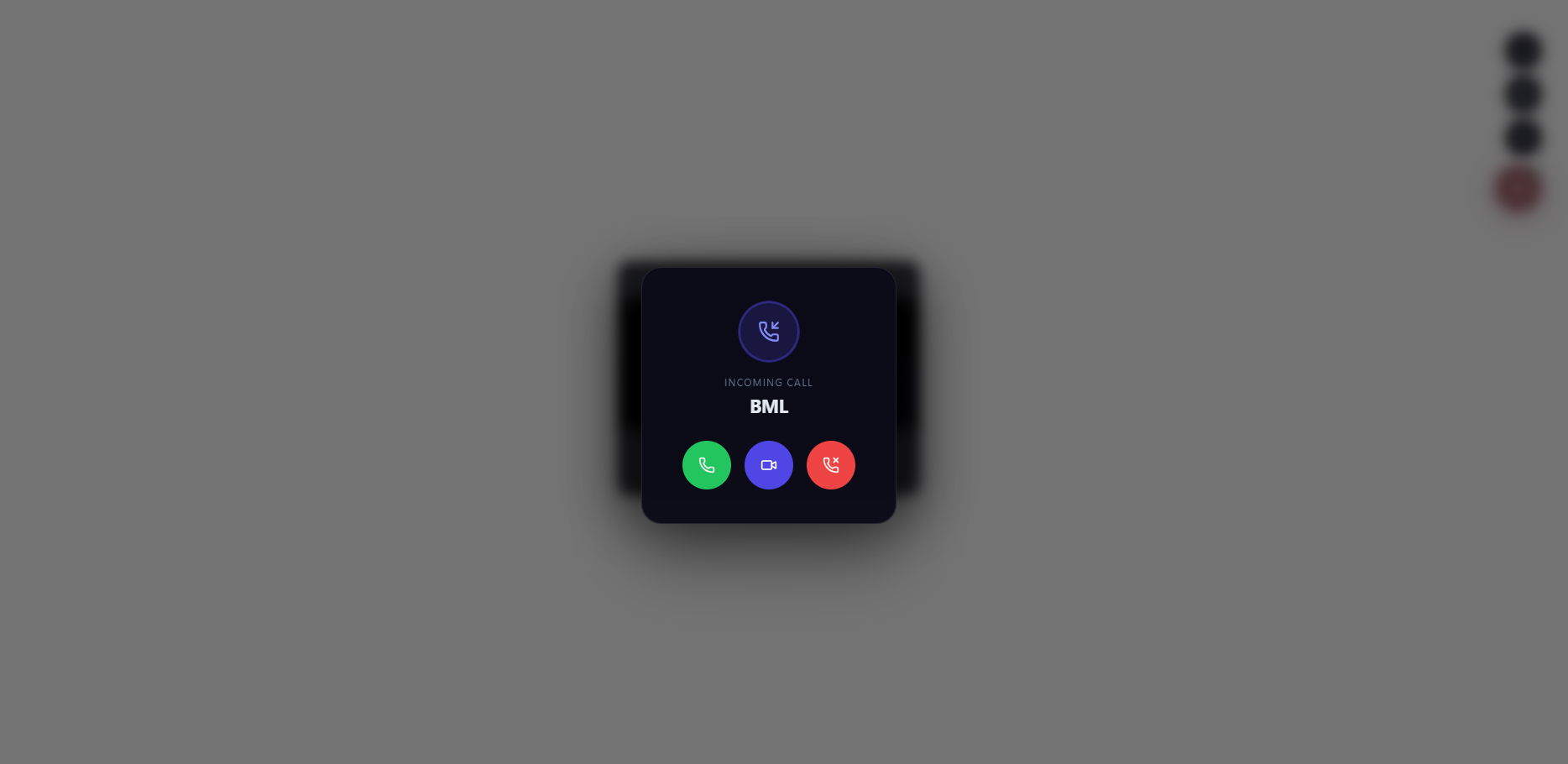
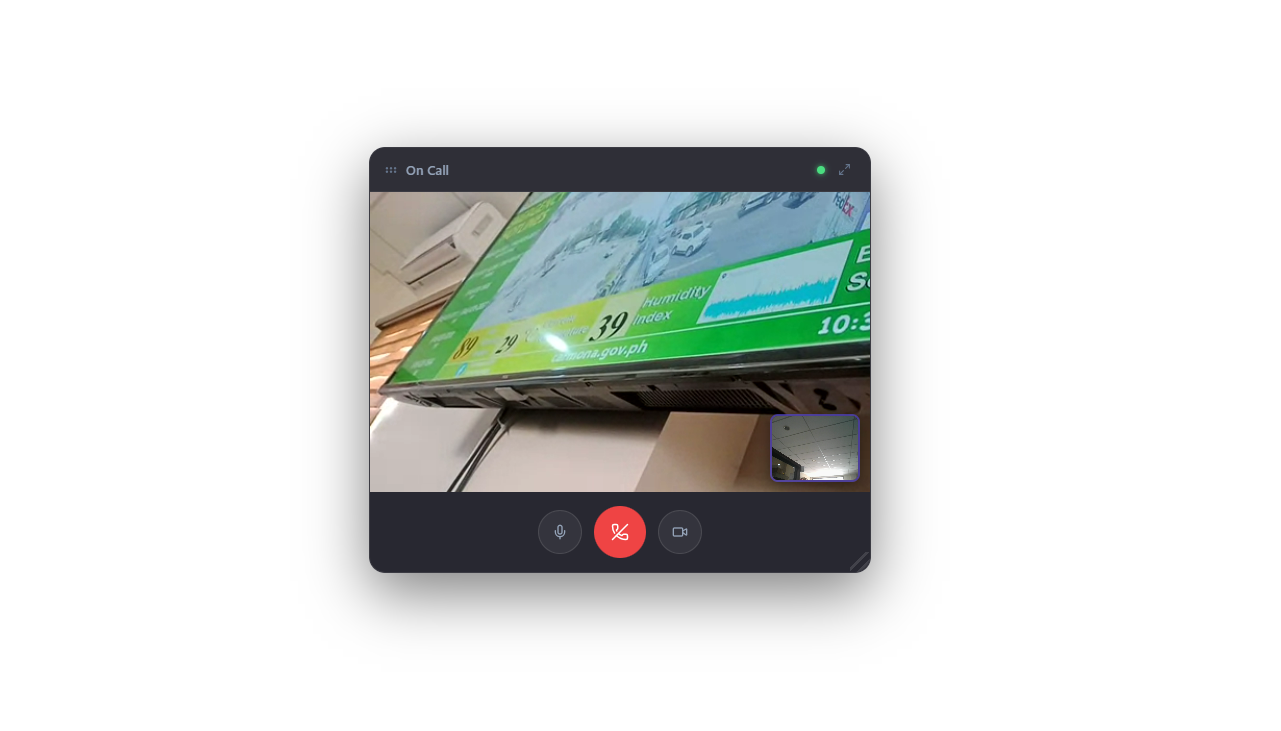
Features
- 🎙 Audio & video calls via WebRTC + SIP (FreePBX / Asterisk)
- 📞 Incoming call notifications with accept/reject
- 🪟 Draggable + resizable floating video panel (expandable to fullscreen)
- 🔢 Draggable dialpad panel
- 💾 Auto-saves config to
localStorageand auto-connects on reload - 🔄 Auto-reconnects on WebSocket disconnect
- 🌐 Transparent background — overlays any existing app
- 📡 Global
ksipcallAPI — trigger calls from plain JS or any framework - 🔒 ws:// / wss:// protocol selector
- 🎚 Audio & video codec selection
- 🔔 Ringtones for incoming and end call
- ⏱ Status toast notification with real-time connection state
- ⌨️ Keyboard shortcut (Ctrl+Shift+K) to toggle settings
- 🪵 Structured
[KSIP Log]console logging for all SIP lifecycle events - 📋 Caller Information Modal — auto-pops for unknown incoming callers
Installation
npm install juv-ksip-softphoneQuick Start
import { Softphone } from 'juv-ksip-softphone';
import 'juv-ksip-softphone/styles';

function App() {
  return (
    <>
      <YourExistingApp />
      <Softphone />
    </>
  );
}
The softphone renders as a transparent overlay with a floating phone button (top-right). Click it to open the nav menu.
Props
SIP Connection Props
| Prop | Type | Default | Description |
|---|---|---|---|
server | string | "" | FreePBX server IP or hostname |
wsProtocol | ws | wss | "ws" | WebSocket protocol |
wsPort | string | "8088" | WebSocket port |
extension | string | "" | SIP extension number |
password | string | "" | SIP extension password |
displayName | string | "" | Caller ID display name |
Recording Props
| Prop | Type | Default | Description |
|---|---|---|---|
autoRecord | boolean | false | Enable automatic recording of all calls |
recordingDir | string | "video/recordings/Ksip" | Directory path for saved recordings |
uploadApiUrl | string | "" | API endpoint URL for uploading recordings |
Settings Configuration Props
| Prop | Type | Default | Description |
|---|---|---|---|
settingConfigToggles | object | all true | Controls which toggles are visible in settings UI |
settingConfigTogglesActiveState | object | varies | Sets initial active state for toggles |
settingConfigCodecs | object | all visible | Controls codec visibility and available options |
UI Props
| Prop | Type | Default | Description |
|---|---|---|---|
enableFloatingStatus | boolean | true | Show or hide the floating status toast (connected/disconnected) |
enabledBubble | boolean | true | Show or hide the entire softphone bubble |
showDialer | boolean | true | Show the dialer button in the FAB nav |
showSetting | boolean | true | Show the settings button in the FAB nav |
showOpacity | boolean | true | Show the opacity button in the FAB nav |
answerwithVideoCall | boolean | false | Auto-answer incoming calls with video |
ShowIncomingCallVideoBtn | boolean | true | Show the video answer button on incoming calls |
ShowIncomingCallAudio | boolean | true | Show the audio answer button on incoming calls |
Examples
Basic — manual config via settings panel
<Softphone />Pre-configured — auto-connect on load
<Softphone
  server="192.168.1.100"
  wsProtocol="ws"
  wsPort="8088"
  extension="1001"
  password="mypassword"
  displayName="John Doe"
/>
Full configuration
<Softphone
  server="192.168.1.100"
  wsProtocol="ws"
  wsPort="8088"
  extension="1001"
  password="mypassword"
  displayName="John Doe"
  enabledBubble={true}
  showDialer={true}
  showSetting={true}
  showOpacity={true}
  answerwithVideoCall={false}
  ShowIncomingCallVideoBtn={true}
  ShowIncomingCallAudio={true}
/>
Audio-only mode
<Softphone
  ShowIncomingCallVideoBtn={false}
  ShowIncomingCallAudio={true}
/>
wss:// for HTTPS pages
<Softphone
  server="pbx.yourdomain.com"
  wsProtocol="wss"
  wsPort="8089"
  extension="1001"
  password="mypassword"
/>
Settings Configuration
<Softphone
  settingConfigToggles={{
    bubble: true,
    dialer: true,
    settings: false,  // Hide settings toggle
    opacity: true,
    autoAnswerVideo: true,
    answerButtonVideo: false,  // Hide video answer button toggle
    answerButtonAudio: true,
    fullscreen: true,
    autoRecording: true,
  }}
  settingConfigTogglesActiveState={{
    bubble: true,
    dialer: true,
    settings: true,
    opacity: true,
    autoAnswerVideo: true,  // Start with auto-answer video ON
    answerButtonVideo: true,
    answerButtonAudio: false,
    fullscreen: false,
    autoRecording: true,  // Start with recording ON
  }}
  settingConfigCodecs={{
    audio: {
        visible: true,
    },
    video: {
        visible: false,
    },
  }}
/>
Auto Recording with API Upload
<Softphone
  autoRecord={true}
  recordingDir="video/recordings/Ksip"
  uploadApiUrl="https://your-domain.com/api/recordings/upload"
/>
Complete Example with All Features
<Softphone
  // SIP Connection
  server="192.168.1.100"
  wsProtocol="ws"
  wsPort="8088"
  extension="1001"
  password="mypassword"
  displayName="John Doe"

  // UI Controls
  enabledBubble={true}
  showDialer={true}
  showSetting={true}
  showOpacity={true}
  answerwithVideoCall={false}
  ShowIncomingCallVideoBtn={true}
  ShowIncomingCallAudio={true}
  fullscreen={false}

  // Recording
  autoRecord={true}
  recordingDir="video/recordings/Ksip"
  uploadApiUrl="https://your-domain.com/api/recordings/upload"

  // Settings Configuration
  settingConfigToggles={{
    bubble: true,
    dialer: true,
    settings: true,
    opacity: true,
    autoAnswerVideo: true,
    answerButtonVideo: true,
    answerButtonAudio: true,
    fullscreen: true,
    autoRecording: true,
  }}
  settingConfigTogglesActiveState={{
    bubble: true,
    dialer: true,
    settings: true,
    opacity: true,
    autoAnswerVideo: false,
    answerButtonVideo: true,
    answerButtonAudio: true,
    fullscreen: false,
    autoRecording: true,
  }}
  settingConfigCodecs={{
    audio: { visible: true, codecs: ["PCMU", "PCMA", "opus"] },
    video: { visible: true, codecs: ["VP8", "H264"] },
  }}
/>
ksip.status Component
The <ksip.status /> component allows you to render the SIP connection status inline anywhere in your application. It listens to the global SIP connection state and displays a banner or inline text.
By default, if connected, it will show the status for 5 seconds and then hide itself. If disconnected or reconnecting, it stays visible.
Usage
import { Softphone, ksip } from 'juv-ksip-softphone';

function MyHeader() {
  return (
    <header>
      <h1>My Application</h1>
      {/* Renders an inline status indicator */}
      <ksip.status variant="inline" />

      {/* Renders a full-width banner */}
      <ksip.status variant="banner" />
    </header>
  );
}
ksipcall API
The ksipcall global lets you trigger calls from anywhere — plain JavaScript, Vue, Angular, or any other framework.
Audio Call
ksipcall.audio("123");Video Call
ksipcall.video("123");Via window (plain HTML)
<button onclick="ksipcall.audio('123')">Call Support</button>
<button onclick="ksipcall.video('456')">Video Call</button>
Import in React
import { ksipcall } from 'juv-ksip-softphone';

ksipcall.audio("123");
ksipcall.video("123");
Settings Panel
The in-app settings panel (accessible via the ⚙ button) has a 3-column layout.
Column 1 — SIP Configuration
| Field | Description | Example |
|---|---|---|
| FreePBX Server IP | IP or hostname | 192.168.1.100 |
| Extension | SIP extension number | 1001 |
| Password | Extension SIP password | mypassword |
| Display Name | Caller ID name (optional) | John Doe |
| Protocol | ws:// or wss:// | ws:// |
| Port | WebSocket port | 8088 |
Column 2 — Codecs
Audio: PCMU, PCMA, G722, G729, opus
Video: VP8, VP9, H264, H265, AV1
Column 3 — UI Preferences
- Show Bubble
- Show Dialer Button
- Show Settings Button
- Show Opacity Button
- Answer with Video
- Show Video Answer Button
- Show Audio Answer Button
CDN Usage (Browser)
Use directly in the browser via CDN — no build tools required.
1. Include scripts
<!-- Styles -->
<link rel="stylesheet" href="https://cdn.jsdelivr.net/npm/juv-ksip-softphone@1.0.35/dist/juv-ksip-softphone.css">

<!-- Softphone bundle -->
<script src="https://cdn.jsdelivr.net/npm/juv-ksip-softphone@1.0.35/dist/juv-ksip-softphone.cdn.js"></script>
2. Mount the softphone
<div id="softphone"></div>

<script>
  const { Softphone, createRoot, createElement } = window.JuvKsipSoftphone;
  createRoot(document.getElementById('softphone')).render(
    createElement(Softphone, {
      server: "192.168.1.100",
      wsProtocol: "ws",
      wsPort: "8088",
      extension: "1001",
      password: "mypassword",
      displayName: "John Doe"
    })
  );
</script>
3. Trigger calls via ksipcall (CDN)
<button onclick="window.ksipcall.audio('1002')">Audio Call</button>
<button onclick="window.ksipcall.video('1002')">Video Call</button>
WebSocket Protocol
| Protocol | Port | Use Case |
|---|---|---|
ws:// | 8088 | Local network, HTTP pages |
wss:// | 8089 | Production, HTTPS pages (requires SSL cert on FreePBX) |
ws:// when the page is served over https://. Use wss:// with a valid SSL certificate for production.FreePBX / Asterisk Requirements
For WebRTC to work, each SIP extension must have these settings:
| Setting | Value |
|---|---|
webrtc | yes |
use_avpf | yes |
media_encryption | dtls |
ice_support | yes |
bundle | yes |
rtcp_mux | yes |
dtls_setup | actpass |
Enable via CLI
[1001](+)
webrtc=yes
asterisk -rx "pjsip reload"Auto Recording
The softphone supports automatic recording of audio and video calls with configurable save directory and API upload.
- ✅ Auto-record toggle in settings panel
- ✅ Configurable recording directory
- ✅ Saves as WebM format
- ✅ Automatic download after call ends
- ✅ Optional API upload with duplicate prevention
- ✅ Filename format:
{ISO-timestamp}.webm
Basic Usage
<Softphone autoRecord={true} />Custom Directory
<Softphone
  autoRecord={true}
  recordingDir="video/recordings/Ksip"
/>
With API Upload
<Softphone
  autoRecord={true}
  recordingDir="video/recordings/Ksip"
  uploadApiUrl="https://your-domain.com/api/recordings/upload"
/>
How It Works
- When auto-record is enabled, a modal prompts user to select a directory
- Browser's File System Access API creates
video/recordings/Ksip/folder structure - Recordings save directly to selected folder without download prompts
- If API URL is configured, uploads to server (once per day to prevent duplicates)
- Browser remembers directory permission for future recordings
Convert to MP3
ffmpeg -i recording.webm -vn -ar 44100 -ac 2 -b:a 192k output.mp3localStorage
Config is automatically saved under the key sip_softphone_config and restored on next page load, including SIP credentials, WebSocket settings, codecs, recording settings, and UI preferences.
showSetting is never saved to localStorage — it is always controlled by props.{
"server": "192.168.1.100",
"extension": "1001",
"password": "mypassword",
"displayName": "John Doe",
"wsProtocol": "ws",
"wsPort": "8088",
"audioCodecs": ["PCMU", "PCMA"],
"videoCodecs": ["VP8", "H264"],
"enabledBubble": true,
"showDialer": true,
"showOpacity": true,
"answerwithVideoCall": false,
"ShowIncomingCallVideoBtn": true,
"ShowIncomingCallAudio": true,
"fullscreen": false,
"autoRecord": true,
"recordingDir": "video/recordings/Ksip",
"uploadApiUrl": "https://api.example.com/upload",
"hasDirectoryAccess": true
}Status Toast Notification
A floating status indicator appears at the top-center of the screen showing the current connection state:
| Status | Color | Behavior |
|---|---|---|
| Connected | 🟢 Green | Auto-hides after 5 seconds |
| Reconnecting | 🟡 Yellow | Stays visible until connected |
| Not Connected | 🔴 Red | Stays visible until connected |
- The status toast includes a settings icon button for quick access to the settings panel
- Automatically appears when the app loads
- Shows real-time connection status updates
- Always visible even when bubble is hidden (can be accessed via
Ctrl + Shift + K)
Connection Monitoring
The softphone includes robust connection monitoring to detect server failures:
- Automatic Re-registration: SIP registration refreshes every 10 minutes to maintain active connection
- Disconnect Detection: Immediately detects when WebSocket connection is lost
- Auto-reconnect: Attempts to reconnect every 3 seconds when connection is lost
- Unexpected Unregistration: Automatically attempts to re-register if server rejects registration
- Long-running Sessions: Maintains connection health even after hours of being connected without page reload
• App connected at 9:00 AM
• Server goes down at 9:30 AM (30 minutes later)
• Status toast immediately shows "Reconnecting..." (yellow)
• Auto-retry every 3 seconds
• When server comes back online → auto-reconnects → "Connected" (green)
Keyboard Shortcuts
| Shortcut | Action |
|---|---|
Ctrl + Shift + K | Toggle settings panel |
Backend API Example (Laravel)
The softphone automatically fetches caller profile data (avatar, name, age, address, mobile) using the /user/extension/{ext} endpoint. Below is an example of how to implement this in a Laravel application.
1. Define the Route (routes/web.php or routes/api.php)
Route::get('/user/extension/{ext}', [UserController::class, 'getByExtension']);2. Create the Controller
<?php

namespace App\Http\Controllers;

use App\Models\User;
use Illuminate\Http\JsonResponse;

class UserController extends Controller
{
    public function getByExtension($ext): JsonResponse
    {
        // Find the user by their SIP extension
        // Assuming your users table has an 'extension' column
        $user = User::where('extension', $ext)->first();

        if (!$user) {
            return response()->json(['error' => 'User not found'], 404);
        }

        // Return the exact data structure expected by the Softphone component
        return response()->json([
            'name'          => $user->name,
            'avatar'        => $user->avatar_url ?? null, // Absolute URL to image
            'age'           => $user->age ?? null,
            'address'       => $user->address ?? null,
            'mobile_number' => $user->mobile_number ?? null,
            'extension'     => $user->extension,
        ]);
    }
}
[KSIP Log] Console Logging
Every important SIP lifecycle event emits a structured console log prefixed with [KSIP Log], making it easy to trace the full connection flow in DevTools without noise from other libraries.
Log Categories
| Event | Log Example |
|---|---|
| WebSocket connecting | [KSIP Log] Connecting to PBX: ws://192.168.1.100:8088/ws |
| UA created | [KSIP Log] UA created for extension 1001 |
| Registered | [KSIP Log] Registered successfully — extension: 1001 |
| Registration failed | [KSIP Log] Registration failed: { cause: ... } |
| Unregistered | [KSIP Log] Unregistered — cause: { ... } |
| WebSocket connected | [KSIP Log] WebSocket connected |
| WebSocket disconnected | [KSIP Log] WebSocket disconnected — code: 1006 reason: |
| Incoming call | [KSIP Log] Incoming call from: sip:1002@192.168.1.100 |
| Outgoing call | [KSIP Log] Outgoing call to: 1002 |
| Call accepted | [KSIP Log] Call accepted |
| Call ended | [KSIP Log] Call ended — cause: Normal Clearing |
| Call failed | [KSIP Log] Call failed — cause: { ... } |
| Media error | [KSIP Log] Media error: NotAllowedError: Permission denied |
| UA cleanup | [KSIP Log] UA stopped and cleaned up |
Example DevTools Output
[KSIP Log] Connecting to PBX: ws://192.168.1.100:8088/ws
[KSIP Log] UA created for extension 1001
[KSIP Log] WebSocket connected
[KSIP Log] Registered successfully — extension: 1001
[KSIP Log] Incoming call from: sip:1002@192.168.1.100
[KSIP Log] Call ended — cause: Normal Clearing[KSIP Log]. You can filter your DevTools console by this prefix to see only softphone-related events.Caller Information Modal (For version 1.6.9 and up)
When an incoming call is received and the caller's profile data (name and address) cannot be found via the /user/extension/{ext} endpoint, the softphone prepares the Caller Information Modal but does not display it immediately. Instead, the modal will automatically display once the user clicks the Answer button.
Trigger Condition
- An incoming audio or video call is received.
- The softphone fetches caller data from
/user/extension/{ext}and detects it is missing/incomplete. - The user clicks the Answer button (either audio or video) to accept the call. The Caller Information Modal pops up immediately.
Behavior (Strict Rules)
- 📌 Persists after call ends — the modal stays open even if the call is rejected, disconnected, or ends. It must be manually submitted or dismissed.
- ↔️ Side-by-side layout — renders next to the incoming call modal, not on top of it.
- 🔒 Mobile number is read-only — pre-filled from the incoming caller's extension.
- 🎛️ 2-Column Grid Layout — the form fields are arranged in a wide 2-column grid with larger input fields for high readability and ease of input.
- ❌ Close Button — a manual close icon (X) is provided in the header to dismiss the modal at any time.
Form Fields
| Field | Type | Required | Notes |
|---|---|---|---|
completeName | Text | ✅ Yes | Full name of the caller (Grid Row 1, Col 1) |
age | Number | ❌ No | Optional age (Grid Row 1, Col 2) |
completeAddress | Text | ✅ Yes | Full address of the caller (Grid Row 2, Spans both columns) |
mobileNumber | Text (read-only) | — | Auto-filled from caller extension (Grid Row 3, Col 1) |
gender | Radio (Male / Female) | ❌ No | Optional gender selection (Grid Row 3, Col 2) |
Controlling the Modal — ShowUnknwonRegisterModalForm Prop
Use this boolean prop to enable or disable the Caller Information Modal feature globally. When set to false, the modal will never appear regardless of whether the caller is unknown.
| Prop | Type | Default | Description |
|---|---|---|---|
ShowUnknwonRegisterModalForm | boolean | true | Enable or disable the Caller Information Modal for unknown callers |
<!-- Enable (default) -->
<Softphone ShowUnknwonRegisterModalForm={true} />

<!-- Disable -->
<Softphone ShowUnknwonRegisterModalForm={false} />
Backend — Register Caller Endpoint
On form submission, the softphone sends a POST request to /ksip/caller/register with the form data as JSON. Implement this endpoint in your backend to save the new caller record.
// routes/api.php  (or routes/web.php)
Route::post('/ksip/caller/register', [KsipCallerController::class, 'register']);
Example Controller
<?php

namespace App\Http\Controllers;

use App\Models\User;
use Illuminate\Http\Request;
use Illuminate\Http\JsonResponse;

class KsipCallerController extends Controller
{
    public function register(Request $request): JsonResponse
    {
        $request->validate([
            'completeName'    => 'required|string|max:255',
            'completeAddress' => 'required|string|max:500',
            'mobileNumber'    => 'required|string',
            'age'             => 'nullable|integer|min:1|max:120',
            'gender'          => 'nullable|in:Male,Female',
        ]);

        // Example: save or update the caller record
        $caller = User::updateOrCreate(
            ['mobile_number' => $request->mobileNumber],
            [
                'name'    => $request->completeName,
                'address' => $request->completeAddress,
                'age'     => $request->age,
                'gender'  => $request->gender,
            ]
        );

        return response()->json([
            'message' => 'Caller registered successfully.',
            'data'    => $caller,
        ], 201);
    }
}
Request Payload (sent by Softphone)
{
  "completeName":    "Juan Luna",
  "completeAddress": "123 Rizal Street, Manila",
  "mobileNumber":    "1001",
  "age":             30,
  "gender":          "Male"
}